
He Is Holding the New Tablet and It Says Installing Update

The box is open on Christmas morning, and the screen says Installing update. Then Restarting. Then Installing update again.
He is standing right there with his hands out. You can’t hurry a progress bar, and you can’t explain one to a five-year-old.
Most of the fix is order, and the order starts about two weeks before anyone wraps anything.
Is it easy to set up a new tablet?
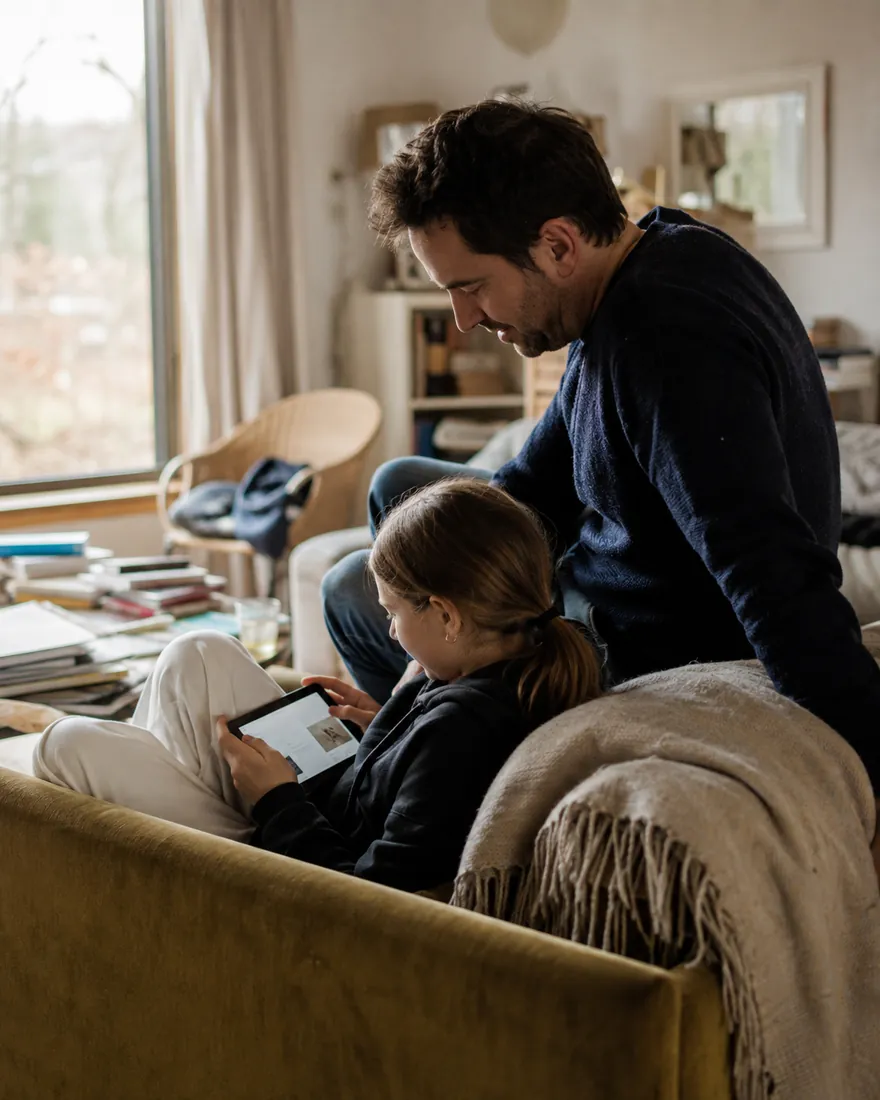
Yes, if you do it in the right order and start early. The taps are quick. The waiting is what gets you: system updates, app downloads, and a restart or two while a child hovers nearby.
So open the box a week or two early. Connect it to your Wi-Fi, run every update, and let the first apps finish downloading while nobody is watching, because a slow connection is easier to live with when no child is waiting on it.
Work from the adult side first. You need your own Google, Apple or Amazon account, and on Android you need the Family Link app on your phone. Create your child’s account next, then sign it in on the tablet. Downloads come last.
Then hand it over and sit down beside him for the first session. You will see which app he taps first and what it asks him for.
That is the pediatricians’ view, and you can follow it with the tablet already bought. Make it the family tablet, keep it in the kitchen, and give your child an account or profile of their own.
How do you set up an Android tablet for a child?
Start on your own phone. Google’s Family Link help page says the app can create a Google Account for a child under 13, or add supervision to one your child already has. Your phone can be an iPhone. The tablet needs Android 6.0 or newer.
Create the account before the box is open. When the tablet asks during setup, sign in as your child and confirm you are the parent. Google says the parent-managed settings apply once your child is signed in.
One trap sits in the second-profile option. If you add a second user profile that your child’s account isn’t signed in to, Family Link doesn’t apply to it. Lock any other profile with a PIN or password.
Next comes purchase approval. In Family Link, pick your child, tap Controls, then Google Play, and choose what needs your OK. Google says approvals cover only purchases made through Google Play’s billing. For a paid app on top, see our guide to which parental control app fits which job.
How do you set up a Samsung tablet for a child?
A Galaxy tablet gives you two routes, and Samsung’s support pages cover both. The first is Family Link: in Settings, open Digital Wellbeing and parental controls, tap Parental controls, then Let’s do this, and sign in as your child.
The second is Samsung Kids, a separate child home screen behind a PIN. Swipe down with two fingers, open the Quick settings panel, and tap the Samsung Kids icon. It offers up to six profiles, a screen time schedule and a bedtime. Samsung says some tablets need the Samsung Kids Installer from the Galaxy Store first.
Pick one to be the boss. Two sets of limits on one tablet leave you guessing which one just ended the game.
What about an iPad or a Fire tablet?
On an iPad, everything starts from your own device, with Family Sharing turned on. Open Settings, tap Family, then Add Member, then Create Child Account. Apple wants each child on their own Apple Account, never one shared with a sibling or you.
Ask to Buy is next. Apple says it is on by default for children under 13, and its Ask to Buy page says requests arrive in Messages. There is one gap: you get no request when a child redownloads a purchase of their own, installs an update or uses a redemption code. Hold on to gift card codes yourself.
Screen Time sits under the same Family menu. Set its passcode on your own device, because Apple says the organizer must do that there, not on the child’s.
A Fire tablet works the other way around: you add the child as a profile on the tablet itself. Open Settings, then Profiles & Family Library, then Add a child profile. Amazon says in-app purchases are blocked by default, and once Store Access is on, app and video requests come to you for approval. The Grownups menu also has a Set Max Volume switch, which pairs well with volume-limited headphones for kids.
Where should the tablet sleep at night?

Not in the bedroom. Pick the spot now, while you are holding the charger. The AAP suggests starting screen-free zones with bedrooms and mealtimes, especially the hour before bed, so a hallway shelf or a kitchen counter beats a nightstand.
Then let the tablet enforce it. Family Link has Downtime under Screen Time, then Schedules. An iPad has a Screen Time schedule under your child’s name, and Fire’s Parent Dashboard has Set Up Screen Time. Start it an hour before lights out, and put a visual timer on the counter for the minutes between.
The daily total is your call, and how many minutes is too many helps you pick it. Google adds one catch: a daily limit applies per device, so two hours means two hours on every Android device or Chromebook.
If the tablet will run a Santa tracker on the 24th, set the bedtime first. Our Santa tracker guide covers which ones ask for what. Bedtime stories can move to a screen-free audio player.
What should you check a week after the box is open?
Ask him what he tried to open and couldn’t. He knows which app said no. On an iPad, unanswered requests lapse after 24 hours, so a quiet week doesn’t mean a week without asking.
Turn off autoplay in every video app he uses. The AAP says features like autoplay aren’t built with children’s well-being in mind.
Next, open the screen time report and find the day the limit hit at a bad moment. Family Link’s Bonus time adds minutes for one day without touching the limit.
Fill in the AAP’s free Family Media Plan now. The AAP says holiday breaks are a good time to review it, and it should change as he grows.
One job belongs to wrapping night, not the week after: charge it to full, then tape a card inside the lid with the bedtime on it, so the rule is the first thing he reads.
Leave the first comment
Share your thoughts
Frequently asked questions
Create your child’s Google Account in the Family Link app on your own phone, then sign that account in when the tablet asks during setup. Confirm you are the parent, and the parent-managed settings apply. After that, set purchase approval and a bedtime schedule in Family Link. Google says the tablet needs Android 6.0 or newer.
Choose Google’s Family Link or Samsung Kids, and let one of them run the rules. Family Link starts in Settings under Digital Wellbeing and parental controls. Samsung Kids opens from the Quick settings panel and asks for its own PIN. Samsung says it needs Android 9.0 or later and offers profiles, screen time and a bedtime.
Yes, once you work in the right order: your own account first, your child’s account second, downloads last. The taps take little effort. Updates, restarts and app downloads take the time, so start a week or two before the tablet is needed. Then a slow connection never holds up a child.
Samsung Kids is a separate child home screen on a Galaxy tablet, opened with a PIN, with up to six profiles. Family Link supervises your child’s Google Account instead, including Google Play approvals and screen time on each Android device they use. Both cover time limits, so pick one to avoid clashing rules.
The American Academy of Pediatrics suggests waiting on personal tablets, because a shared one lets you watch along and see what your child is using. If the tablet is already bought, keep it as the family tablet in a common room and give your child an account or profile of their own.

I'm for the parent about to spend money they're not sure about. I buy the gadget, live with it, and give you the honest verdict - including the 'don't'. I've burned through enough hype to save you the cash, and when something truly earns its place, I'll show you exactly why.
More from TylerWhich tool earned its place - and which was a waste of money?
No right answers here - tell us how it went. Someone reading needs to hear it.
Join the conversation